⌨️ Inputs
Drain the Lake controls — fill, drain, F teleport, and Upgrade Computer
Watch the core Drain the Lake inputs in action: left-click fill at the lake, pour at the drain, press F to teleport, and spend Tokens at the Upgrade Computer.
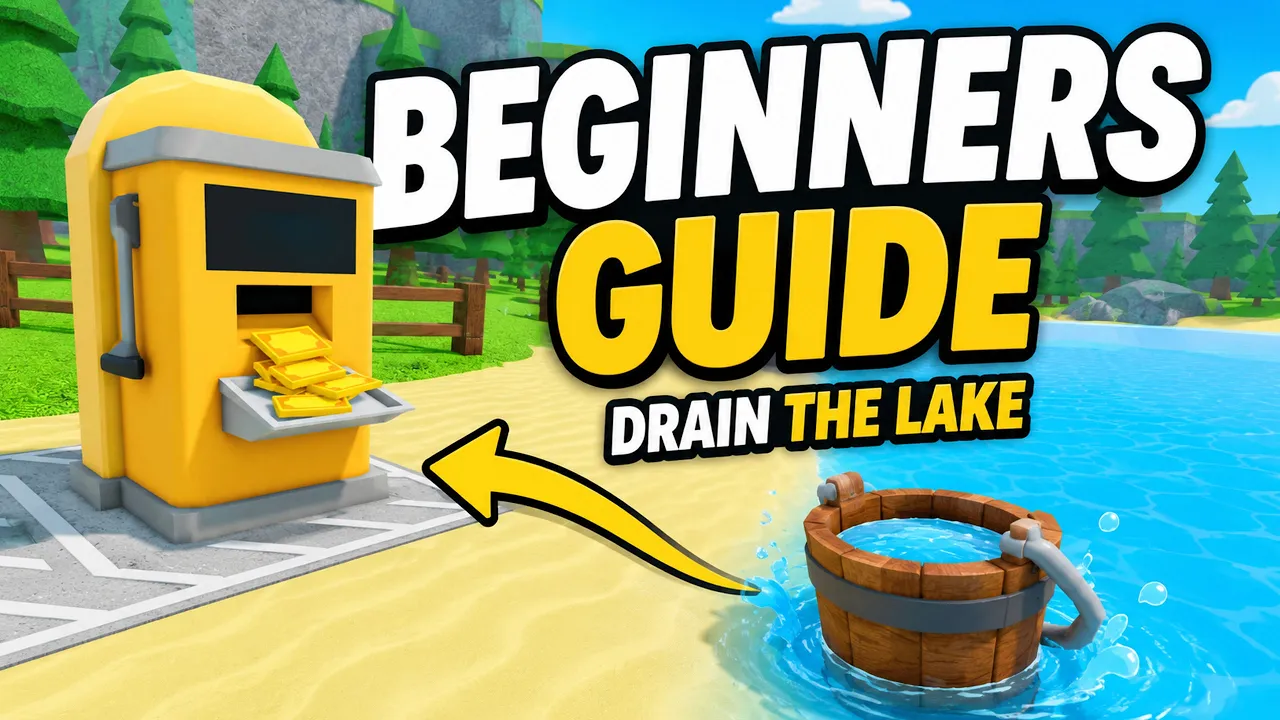
Drain the Lake controls for Roblox — every input for the fill-drain loop.
⌨️ Inputs
Watch the core Drain the Lake inputs in action: left-click fill at the lake, pour at the drain, press F to teleport, and spend Tokens at the Upgrade Computer.
Drain the Lake uses standard Roblox controls on every platform — there is no in-game rebinding menu. Movement, camera, and interact prompts behave like most Roblox simulators.
This Drain the Lake controls reference maps every input to the drain cycle: fill bucket at the lake, move or teleport to the drain station, pour for Tokens, spend at the Upgrade Computer, repeat.
PC players get a unique F teleport shortcut between lake and drain once unlocked. Mobile and console players rely on on-screen buttons instead — see the dedicated mobile guide for touch tips.
Searching drain the lake controls, Drain the Lake roblox keyboard, or how to fill bucket all land here. The verified inputs match Place ID 138381251771774 by IWTM10GTMPLS.
Pair this page with the beginner guide if you have not completed your first pour yet.
On PC, move with WASD and jump with Space — standard Roblox locomotion in Drain the Lake Roblox.
Right-click drag or mouse movement controls the camera. Aim the cursor at the lake surface when filling — the bucket only collects when your crosshair targets water.
Sprint is not a separate Drain the Lake mechanic; Character movement speed upgrades on the skill tree replace a dedicated sprint key.
Shift-lock (Roblox default) can help keep camera stable while walking between lake and drain. Toggle through Roblox settings if your view spins during fill attempts.
| Action | PC input | Notes |
|---|---|---|
| Move | WASD | Roblox default |
| Jump | Space | Cross small obstacles near spawn |
| Camera | Mouse | Aim at lake to fill |
| Sprint | — | Use Character speed upgrades instead |
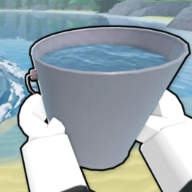
Equip your bucket from the hotbar or inventory prompt, stand near the lake, place your cursor on the water, and left-click (hold or click) to fill in Drain the Lake.
If nothing happens, your cursor is probably on land, dock, or air — the most common new-player control mistake in Drain the Lake Roblox.
Bucket range extends beyond your feet. You can fill from the shoreline while standing on safe ground — essential once sharks appear in deep water.
Walk to the drain station and use the interact prompt (typically E or click on the highlighted part) to pour water out and earn Tokens.
The pour step may show a progress animation. Quick Drain skill tree nodes speed this step mid-run — see best upgrades.
| Step | PC input | Result |
|---|---|---|
| Equip bucket | Hotbar / click tool | Bucket active |
| Fill at lake | Left-click on water | Water stored |
| Walk to drain | WASD | Position at station |
| Pour water | Interact (E / click) | Tokens earned |
On PC, press F while at the lake to teleport to the drain station once that shortcut is available in Drain the Lake.
The F key is the largest PC-only time save in the fill-drain loop — it pairs with Character movement upgrades on the skill tree for maximum trips per minute.
Mobile and console builds use on-screen teleport buttons instead of F. If you switched from PC to phone, do not hunt for a keyboard shortcut that does not exist on touch.
Teleport does not replace filling or pouring — you still need a full bucket before pressing F in Drain the Lake Roblox.
If F does nothing, finish at least one full drain cycle. Some shortcuts unlock only after the game confirms you understand the base loop.
Walk to the Upgrade Computer near spawn and interact to open the skill tree UI. Spend Tokens on unlocked nodes with mouse clicks in Drain the Lake.
The UI shows branch tabs for Character, Bucket, Reward, Quick Drain, Gems, and Depth — same branches listed on the skill tree guide.
Close the menu with Esc or the on-screen close button before testing your next loop. Upgrades apply immediately; you do not need to re-equip the bucket.
Tokens reset when the run ends — buy nodes during the active match, not after returning to lobby. Lobby Gems and bucket purchases use different UI at the shop and Badges station.
If a node looks locked, earn more Tokens from drains or buy cheaper prerequisites first. See token planning for spend order.
| UI | Open with | Currency |
|---|---|---|
| Upgrade Computer | Interact at spawn | Tokens (run) |
| Lobby bucket shop | Interact in lobby | Gems (persistent) |
| Badges station | Interact in lobby | Claim Gem rewards |
Checkpoints appear as flag masts in the water. Swim or walk close and interact when the prompt appears to set a respawn point in Drain the Lake.
Chests exposed by dropping water levels open with the same interact prompt — granting Gems for lobby bucket purchases.
Swimming into deep water uses standard Roblox movement — no separate dive button. The Plunge badge triggers from swimming in the lake.
Shark encounters in deep Drain the Lake Roblox are environmental hazards, not a separate combat mode. Use shoreline fill controls to avoid mid-lake standing.
Mobile players use the floating joystick to move and touch-hold on water to fill the bucket continuously in Drain the Lake.
Teleport, pour, and interact buttons appear as on-screen prompts when near the drain station or checkpoint — no F key on touch devices.
Console players use the left stick to move and face buttons / triggers for interact per Roblox's gamepad map. The drain loop is identical; only input labels change.
For touch-specific camera locking, hold-fill tricks, and performance tips, read the full mobile guide.
Upgrade priority does not change by platform — only input friction. Mobile players often feel walk time more and benefit early from Character speed on the skill tree.
| Platform | Fill | Lake → drain shortcut |
|---|---|---|
| PC | Left-click on water | F key teleport |
| Mobile / tablet | Touch-hold on water | On-screen button |
| Console | Interact on water aim | On-screen / context button |
Bucket not filling — cursor or touch aim is off the water. Re-aim until ripples appear. See stuck fixes.
Interact prompt missing — walk closer to the drain station, checkpoint flag, or chest. Roblox prompts require proximity.
F key dead on PC — complete one full fill-drain cycle first; confirm you are in an active match, not the lobby.
UI buttons clipped on mobile — rotate device or lower Roblox UI scale in settings before blaming Drain the Lake controls.
After patches, button labels can shift — check the updates page and confirm prompts on your live build.
WASD move, left-click fill on water, interact to pour at drain, F to teleport lake→drain when unlocked, interact at Upgrade Computer for skill tree.
Equip bucket, aim cursor or touch on the lake surface, hold or click until full. Land aim blocks fill.
No in-game rebinding. Use Roblox account settings for platform-level remaps.
PC shortcut to teleport from the lake to the drain station after unlock — saves walk time each loop.
Matched by build plan, shared topics, and guide progression — not random related links.